×
![]()
Create and Set up a Shelf
In this tutorial, we're going to create a new shelf in the mod; no special programming knowledge is required.
- 1-First we will need a static mesh of the entire shelf, as well as several static meshes of the shelf cut by level (so one static mesh of the whole shelf and one static mesh of each level)
- A-If you don't know how to properly import a static mesh into Unreal, here's how to do it: How Import Static Mesh
- B-If you didn't have static mesh cut from each floor, then:
- B1-Copy the static mesh of the entire shelf into the content drawer (the folder menu at the bottom) to have as many static meshes as the number of levels in your shelf (keeping the static mesh of the entire shelf which will be used later)
- B2-Then, each static mesh of the floor is cut to have one static mesh per floor. Here's how to cut a floor of a shelf: How cut a Static Mesh
- Here is an example of what your static mesh should look like:
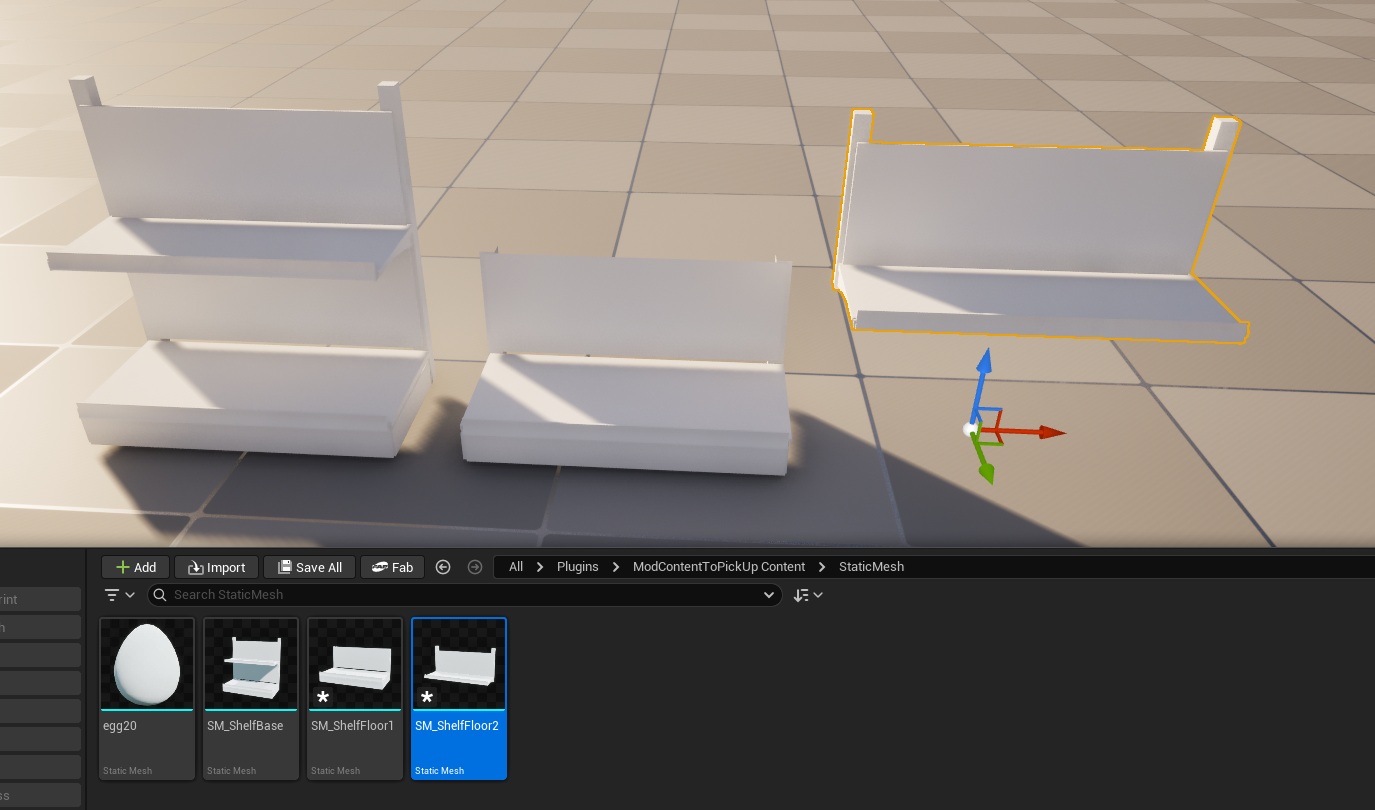
- 2-you'll need to create the shelf in the DT_itemMod data so that it appears in the purchase menu. To ensure it's listed under shelves, please remember to add the subcategories: "FURNI"and "FURNI_FREE_ONLY" in addition to the store's subcategory, which is linked to the store's category. Once this is done, you can follow the tutorial on shelf data. (Use the full static mesh of the uncut shelf for this data.)
- 3-Open "DT_ShelfMod"
- 4-Here is the data table interface. First, we'll create a row by clicking “Add” in the upper-left corner of the screen, then select the row that was just created, and finally change the settings at the bottom.
- One line corresponds to one shelf (if you have created variants in the "DT_itemMod" data, then create as many lines in this data as there are variants in the "DT_itemMod" data.)
- (Note that if some tabs are missing from your menu, you can display them by clicking “Windows” in the upper-left corner and then selecting the missing windows.)
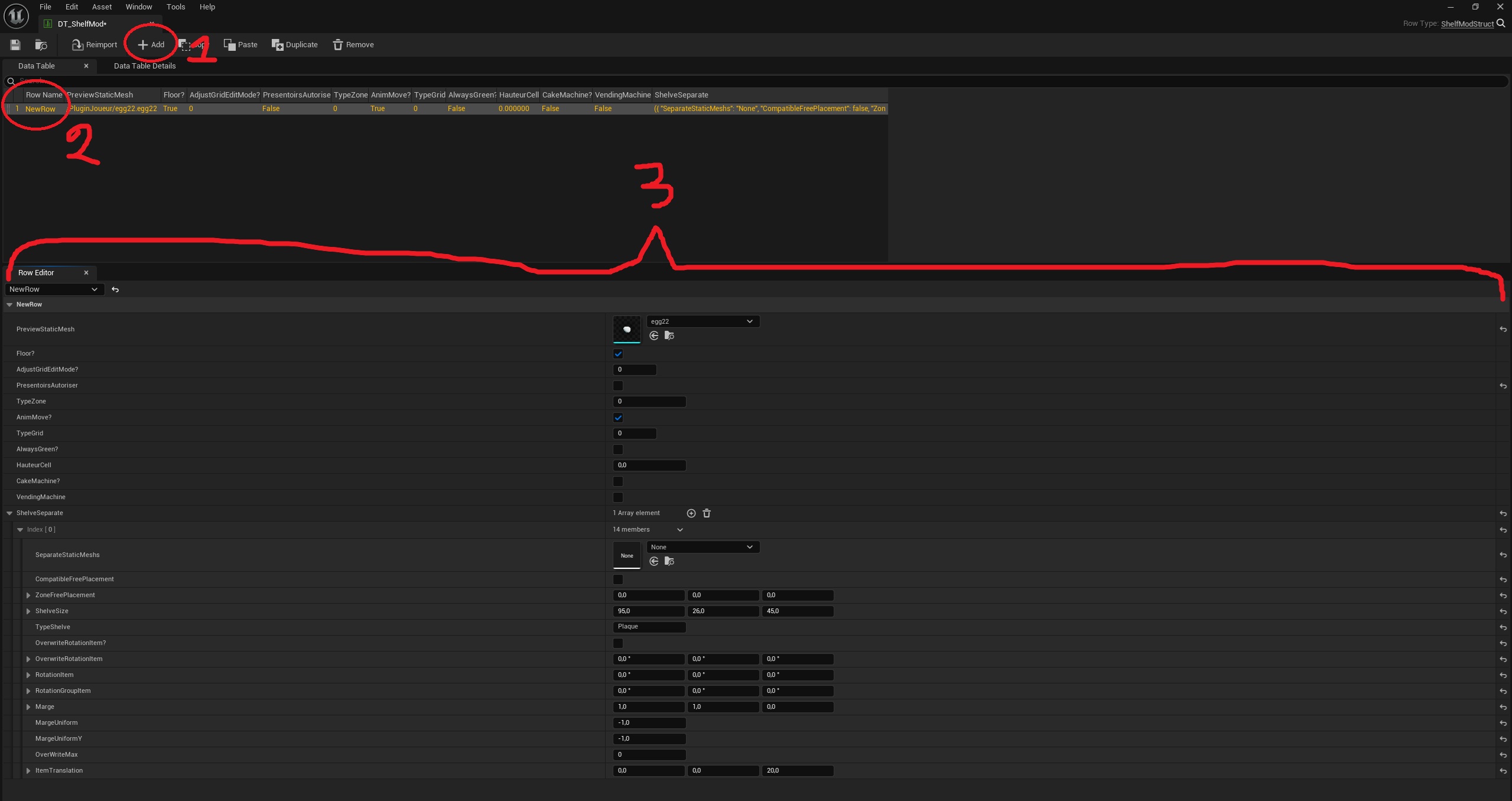
- 5-So first, you need to create a unique identifier for each decoration; each row corresponds to one shelf (if you have created variants in the "DT_itemMod" data, then create as many lines in this data as there are variants in the "DT_itemMod" data.)
- (This ID should be as short as possible and must not contain spaces, special characters, or accents.)
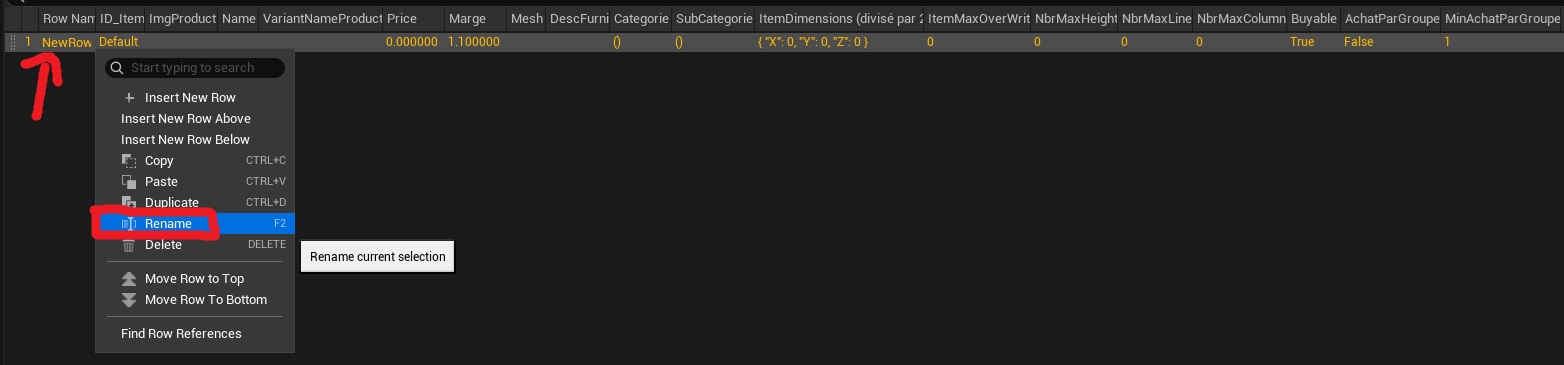
- You can assign an ID to a line by right-clicking on it and selecting “Rename.”
- 6-Next, you can move on to the bottom section with all the variables to set. Here's what the tab looks like in the image:
- 7-Here is a list of all the variables, along with their types and how to initialize them correctly:
- ShelfClass: StaticMesh- Here you must enter the same static mesh that you entered in the data "DT_itemMod" (the entire static mesh of your furniture).
- Floor?: Bolean- Here you must check the box if the furniture is placed on the floor, or uncheck the box if the furniture is placed on another piece of furniture or on a countertop.
- AdjustGridEditMode?: Byte- Here you only need to change the number if you have unchecked "Floor". This indicates what type of furniture or countertop this piece of furniture can be placed on; here are the possibilities:
- 0= bakery counter
- 1= bucher counter
- 2= Fisher counter (for now don't work)
- 3= Cheese counter (for now don't work)
- 4= flower counter (for now don't work)
- 5= jewerly counter
- 6= Desk
- 7= On top of the jewerly counter
- 8= Shelf
- PresentoirsAutoriser: Bolean- Here you must check if you want large pieces of furniture (currently only the bread cabinet) to be able to be placed on your unit (if unchecked, only small pieces of furniture can be placed on it) (if you do not want any furniture to be able to be placed on your unit, please change the "CompatibleFreePlacement" setting in the "ShelveSeparate" setting).
- TypeZone: integer- This option is only for people who have checked the "Floor?" option. Here you can choose which zone the shelf can be placed on.
- 0= Shelf zone
- 1= Rack zone
- 2= Depreciated
- 3= Everywhere
- 4= Vending machine zone
- 5= Machine zone
- 6= Depreciated
- 7= Break room zone
- 8= Decoration zone
- 9= Decoration warehouse zone
- AnimMove?: Bolean-Here you can check the box if you want an animation to play when the item is placed and a slight rotation to occur when you move the shelf. Uncheck it if you don't want any animation (for shelf we always want an animation, so stay checked this parameter).
- TypeGrid: Byte-Enter 0 if the shelf is placed on the floor or on a counter, enter 2 if the shelf is placed on the walls.
- AlwaysGreen: Bolean-If you don't want the shelf to detect a collision when you place it too close to a wall or if it passes through a shelf, for example (useful for floors, for example)
(For large items, which take up a lot of floor space, checking this box provides significant optimization because collision calculation is not optimized for large objects)
- HauteurCell: Float-Here you must specify the height from which your shelf should be placed, measured from the floor (only for shelf that are placed on the ceiling).
- CakeMachine: This parameter is deprecated.
- VendingMachine: Bolean-Check this setting if you want customers to treat this shelf like a vending machine (meaning money accumulates on the shelf after purchasing items from it, and customers only buy from this shelf after paying at the checkout).
- ShelveSeparate: Here you can add an array element for each level of this shelf; each element therefore corresponds to one level.
- SeparateStaticMeshs: StaticMesh-Here you need to enter the static mesh clipped from the floor of your furniture.
- LabelPricePlacement: Array of transform-Here you enter the location and rotation of each label of price you want by floor.
- ShelveSize: Vector-Here you enter the dimensions (width in x, depth in y, and height in z) of the shelf level. This will be used to regulate the number of items on that level.
- TypeShelve: Name-Here you enter the support for your floor. (To create or use an existing support in the game, here is the documentation:Create or use furniture support)
- OverwriteRotationItem?: This parameter is deprecated. ()
- OverwriteRotationItem: Rotator-This adds individual rotation to all instances of items on this shelf.
- RotationItem: Rotator-This applies a rotation to the final position of the items, (Useful if you have a stepped shelf, as it doesn't rotate the item directly.)
- RotationGroupItem: Rotator-This applies a rotation to the final position of the items and turn the articles at the same time, (useful if you have a shelf at an angle.)
- Marge: Vector-This gives the minimum space in centimeters between the items
- MargeUniform: Integer-If you want the space between items to depend on their size, leave "-1". If you want the space between the middle of two items to be the same no matter what (useful for "pine" shelves), then write a value in centimeters for the space from left to right of the items.
- MargeUniformY: Integer-Same as MargeUniform but for the shelf depth axis
- OverWriteMax: Interger-If you want the maximum number of items to be a fixed value regardless of the shelf space or the number of items that can fit on that shelf, then enter it here. If you want the maximum number of items to be calculated automatically, then leave it at 0.
- ItemTranslation: Vector-Here, enter the translation you want to apply to the items so that they don't go to point 0 on the shelf (often simply entering the value in centimeters of the current shelf height works).