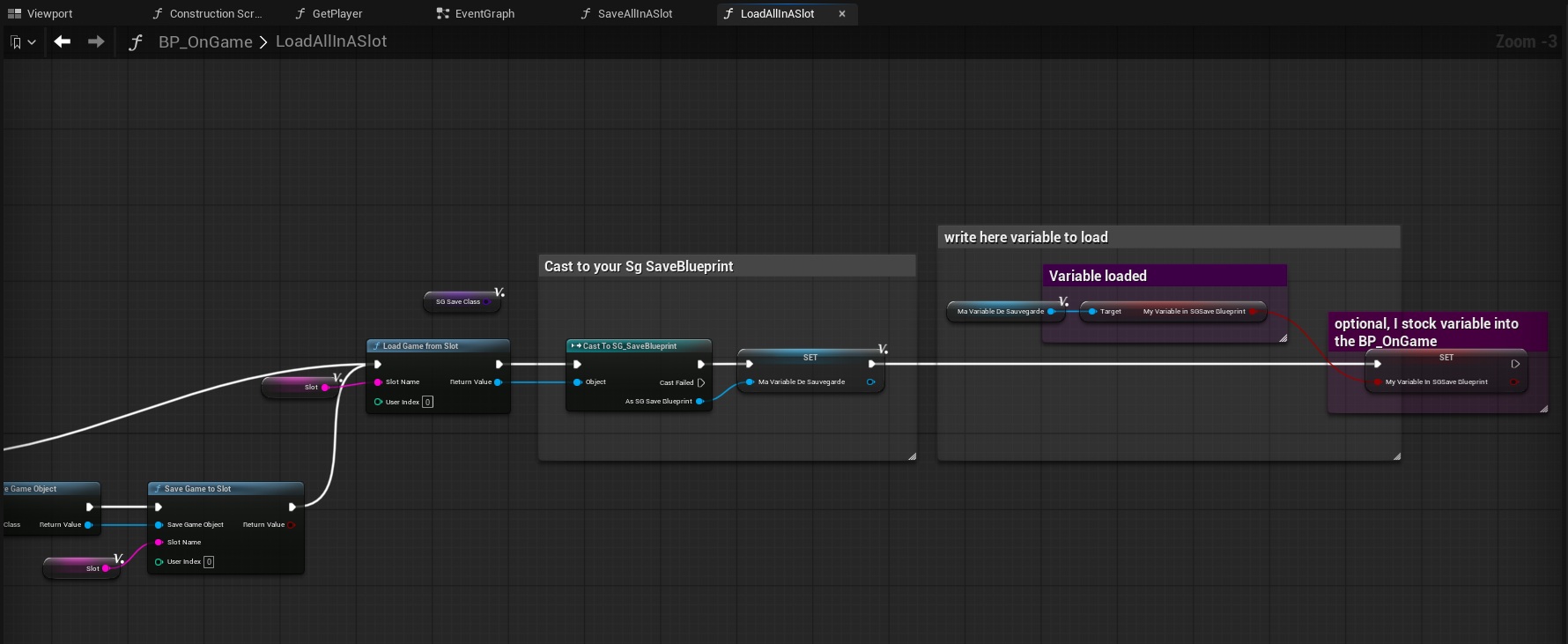
Here you will learn how to save a variable, so that after the game is closed, data such as text, a condition, or a number remains saved (example: save if the player has already received a reward in this game).
Save a variable
- 1-First, you will need to choose what to save as a variable.
- 2-Once you have made this choice, go to "SG_SaveBlueprint"
- 3-and on the left, click on the + in the variable category
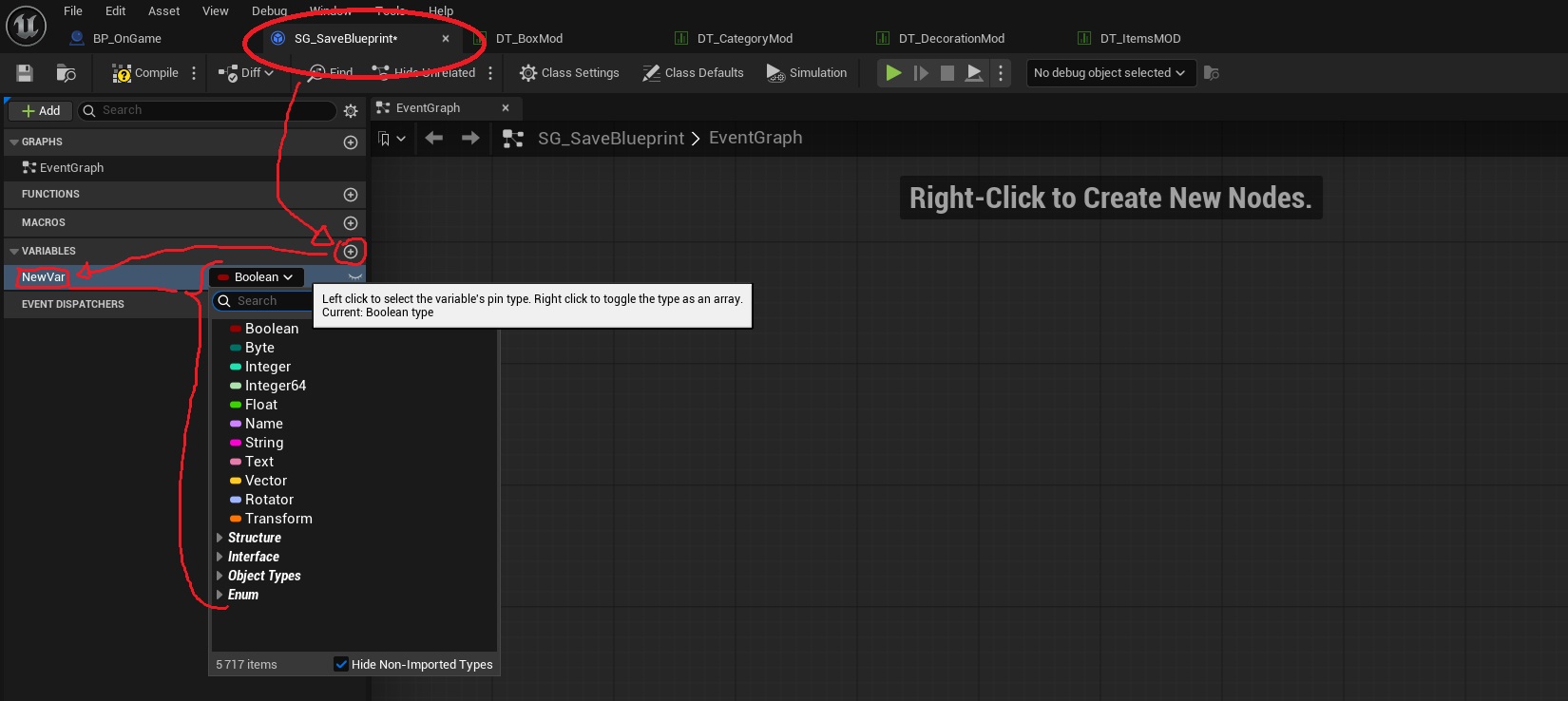
- 4-and enter the name of your variable, then select the variable type. Here are the main types:
- Boolean: is either true or false.
- Byte: a number between 0 and 255 (does not accept decimal numbers).
- Integer: a number between -2 147 483 648 and 2 147 483 647 (does not accept decimal numbers).
- Integer64: a number between -9 223 372 036 854 775 808 and 9 223 372 036 854 775 807 (does not accept decimal numbers).
- float: a number between -9 223 372 036 854 775 808.0 and 9 223 372 036 854 775 808.0 (accept decimal numbers).
- Name: It looks like a text, but it isn't; it's an identifier that allows for the quick comparison of two identifiers.
- String: a text that is not translatable.
- Text: a text which is translatable but which is useless for mods because mods cannot be translated with the default tool of unreal engine.
- Vector: stock 3 float at a time.
- Vector2D: stock 2 float at a time.
- Rotator: stock 3 decimal numbers which correspond to degrees per axis, the values are not normalized so -90° does not change itself to 270° but normalization can be done by a function.
- Transform: stock 2 vector and 1 rotator, (useful, for example, for saving the position, rotation, and size of an object in a variable)
If you want to save actors or objects, do not save variables of type "Object reference" as this will not work for actors or objects, but you can save actors of type "Class reference" which will save the type of the actor only.
- 5- On the right you can change the variant of your variable; each variable has up to 4 variants. Here they are:
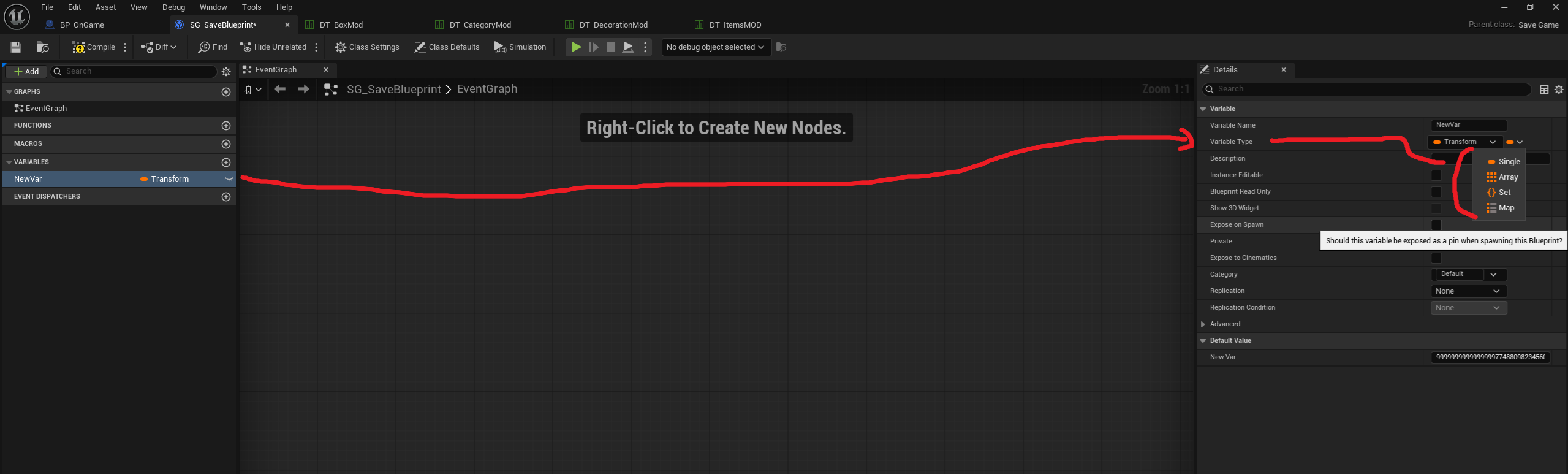
- single: the variable is saved as is.
- Array: The variable is an array/list of the chosen type, (so if you create, for example, an array of the variable Bolean, then you will have a list of booleans.)
- Set: This variable will be like an array, but each entry in the array is randomly shuffled when saved, but this saves storage space.
- Map: This variable is like an array, but each entry is linked to a key and not an index; the key can be of any type you choose, no two keys can be the same.
- 6-You can save the project
- 7-Then open "BP_OnGame" or "BP_OnMainMenu" depending on your needs.
- 8-Then, in the list on the left open the functions "SaveAllInASlot", we will create a function to save all the variables at once.
- 9-I've included some code that you'll need to complete for saving. First, in the bottom left corner, change the following variables in the "Local variable" category:
- Slot: the name of the Windows file that will hold your backups, so please no special characters. (TIP: You can put "your mod name" followed by "_" and "the name of the game being played", so that saving is done only for the player's game and not across all of the player's games. The name of the save file that the player launched can be found in the "OnGameLoaded" section.)
- SG_SaveClass: Enter the "SG_SaveBlueprint" value included in your mod into the variable, being careful not to select the one from "ModContentToPickUp".
- 10- In the code, there's a comment or gray box that says "Cast to your sg save blueprint". Please replace it with "Cast to sg save blueprint". Be careful to disable the "ModContentToPickUp" module in your project to avoid accidentally selecting the one from modcontenttopickup.
- 11- The cast also has an "Object" input and a white arrow; connect them both to the corresponding colors on the node on the left labeled "Load game from slot".
- 12- The "cast to sg save blueprint" has a node in output "As SG Save Blueprint", right-click on it and then "Promote to a local variable".
- 13- in the grey box "Write here variable to save" we will right-click in the empty space and take "get {previously created variable}" from the list
- 14- then take the blue output that comes out and do a "set {variable created in the SG_SaveBlueprint}" to save a variable.
- 15- then the "set {variable created in the SG_SaveBlueprint}" has a white arrow at the input and output,
- the input arrow connected to the previously created variable near the cast,
- and the output arrow to "Save Game to slot"
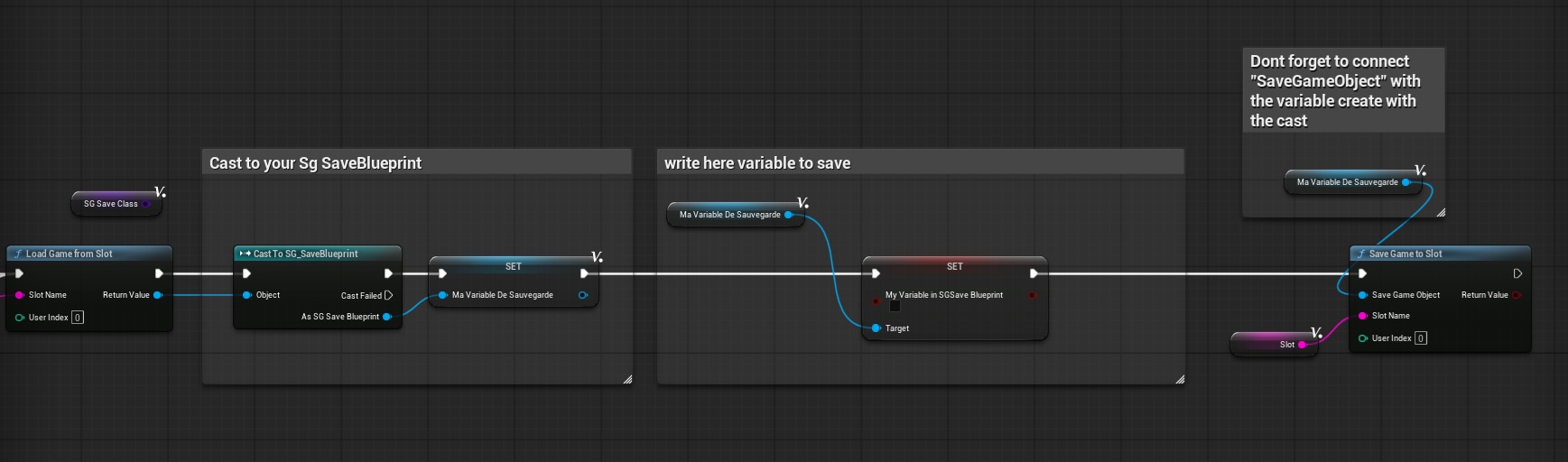
- 16- If you have done everything correctly, the function should look like this:
- 17- Now that the function is created, you can call it whenever you want to save the variable. If you want to save the variable at the same time as the game saves its own, you can link the function to the "OnGameSaved" interface.
Load a variable
Now that the variable is saved, here's how to read a stored variable. Be careful, reading stored data should be done rarely because a player with a hard drive will freeze the game while the data is being read from the disk. One tip: is to read all your mod's variables at once on startup and then store them in "BP_OnGame" in a variable for later reuse.
- 1- open "BP_OnGame" or "BP_OnMainMenu" depending on your needs.
- 2- then open the "LoadAllInASlot" function on the left pane.
- 3-I've included some code that you'll need to complete for saving. First, in the bottom left corner, change the following variables in the "Local variable" category:
- Slot: the name of the Windows file that will hold your backups, so please no special characters.
- SG_SaveClass: Enter the "SG_SaveBlueprint" value included in your mod into the variable, being careful not to select the one from "ModContentToPickUp".
- 4- In the code, there's a comment or gray box that says "Cast to your sg save blueprint". Please replace it with "Cast to sg save blueprint". Be careful to disable the "ModContentToPickUp" module in your project to avoid accidentally selecting the one from modcontenttopickup.
- 5- The cast also has an "Object" input and a white arrow; connect them both to the corresponding colors on the node on the left labeled "Load game from slot".
- 6- The "cast to sg save blueprint" has a node in output "As SG Save Blueprint", right-click on it and then "Promote to a local variable".
- 7- in the grey box "Write here variable to load" we will right-click in the empty space and take "get {previously created variable}" from the list
- 8- then take the blue output that comes out and do a "get {variable created in the SG_SaveBlueprint}" to load a variable.
- One tip: is to read all your mod's variables at once on startup and then store them in "BP_OnGame" in a variable for later reuse.
- 9- If you have followed the steps, here is what the function should look like: