In this tutorial, we're going to create a new box in the mod and see how to use the ones already in the game; no special programming knowledge is required. First, we'll see how to use a box already in the game:
You can't modify the boxes that are already in the game, but you can use them for item data, for example.
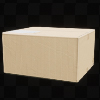
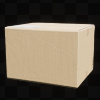
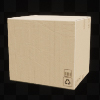
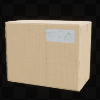
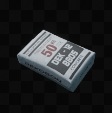
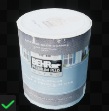
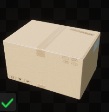
Here is a list of the boxes in the game, along with their IDs/name, which can be entered into the item data. And their half dimensions in centimeters, with a photo of each box to the right.
(yellow= for items ; orange= for shelves ; pink = for bakery ; blue = for decorations)
|
SmallBox01 (20,5 ; 21,5) |
 |
MediumExtensedBox01 (20,5 ; 28,0) |
 |
MediumBox01 (20,5 ; 37,0) |
 |
LargeBox01 (27,3 ; 42,7) |
 |
|
BakerySmallBox1 (26,0 ; 8,6) |
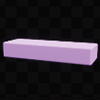 |
BakerySmallBox2 (15.6 ; 8.6) |
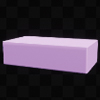 |
DecoMediumBox (18,2 ; 15,0) |
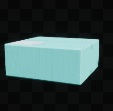 |
DecoLargeBox02 (57,2 ; 60,0) |
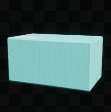 |
|
DecoWall (27,0 ; 15) |
 |
PotPaint (7 ; 25) |
 |
BoxFurniEtagere
|
 |
||
First, we'll open the item data table: "DT_BoxMod"
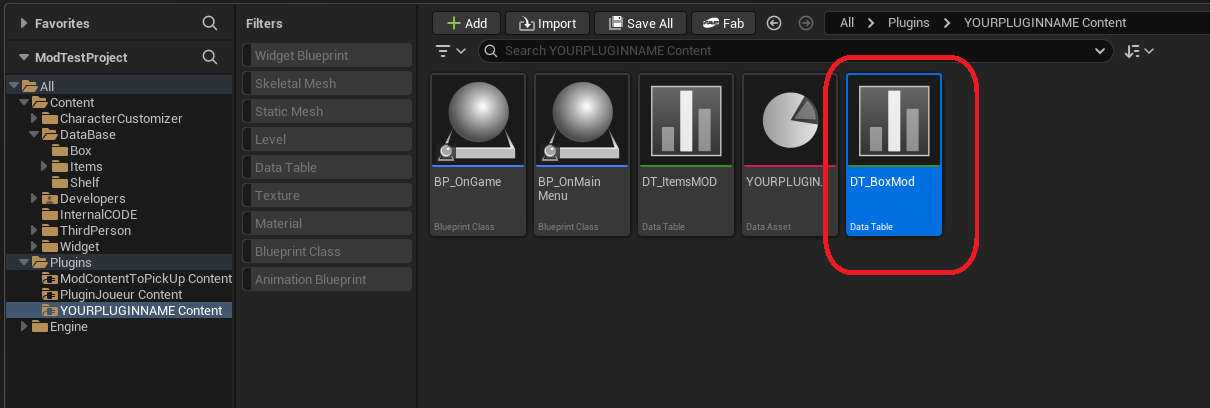
Here is the data table interface. First, we'll create a row by clicking “Add” in the upper-left corner of the screen, then select the row that was just created, and finally change the settings at the bottom.
(Note that if some tabs are missing from your menu, you can display them by clicking “Windows” in the upper-left corner and then selecting the missing windows.)
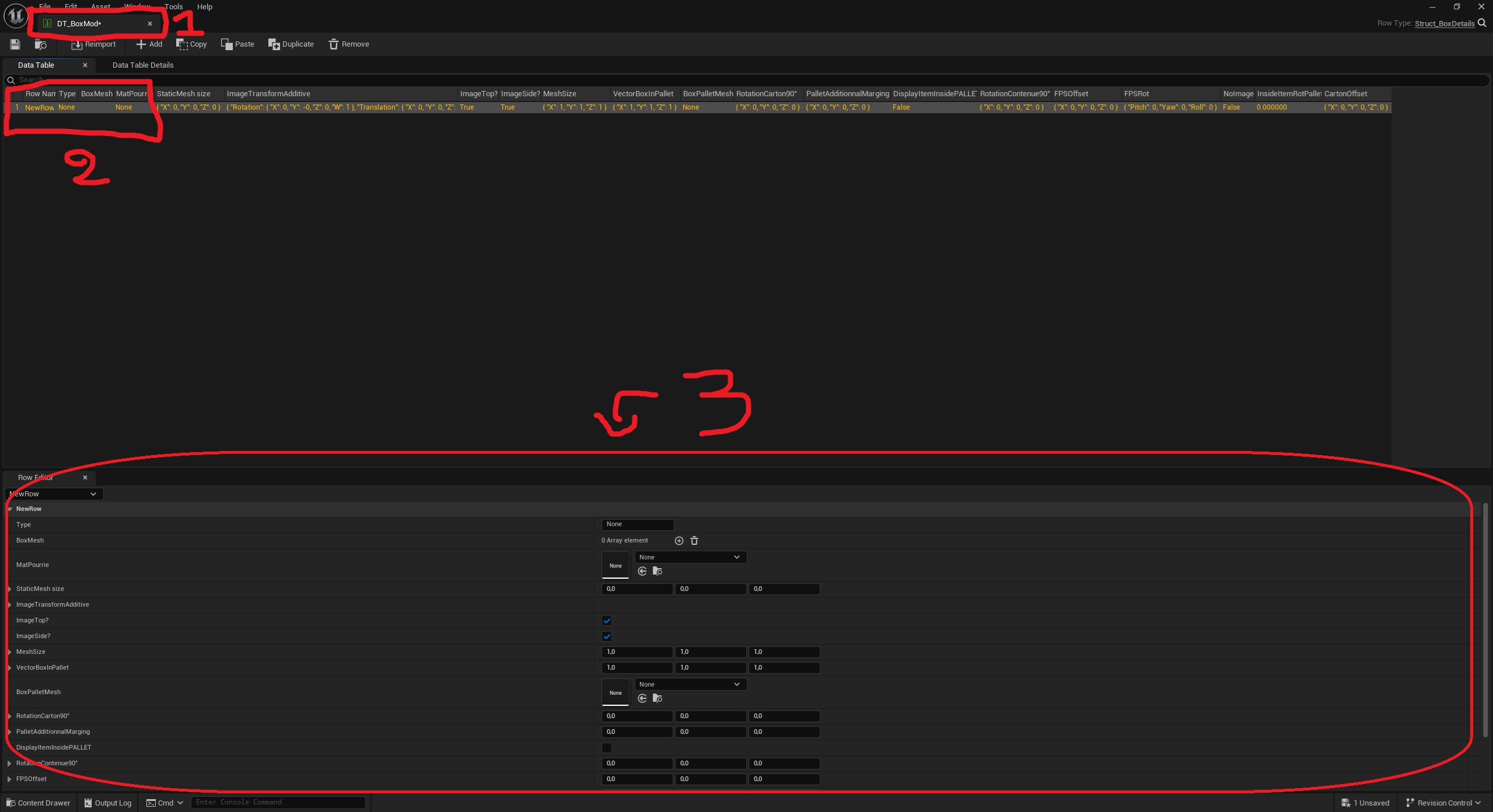
So first, you need to create a unique identifier for each box; each row of data corresponds to one box.
(This ID should be as short as possible and must not contain spaces, special characters, or accents.)
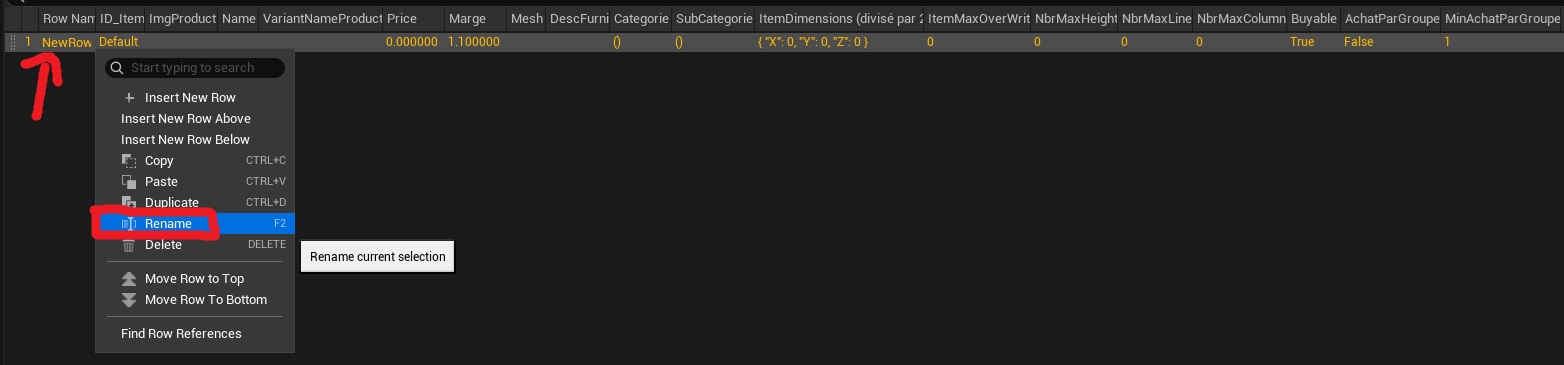
You can assign an ID to a line by right-clicking on it and selecting “Rename.”
Next, you can move on to the bottom section with all the variables to set. Here's what the tab looks like in the image:
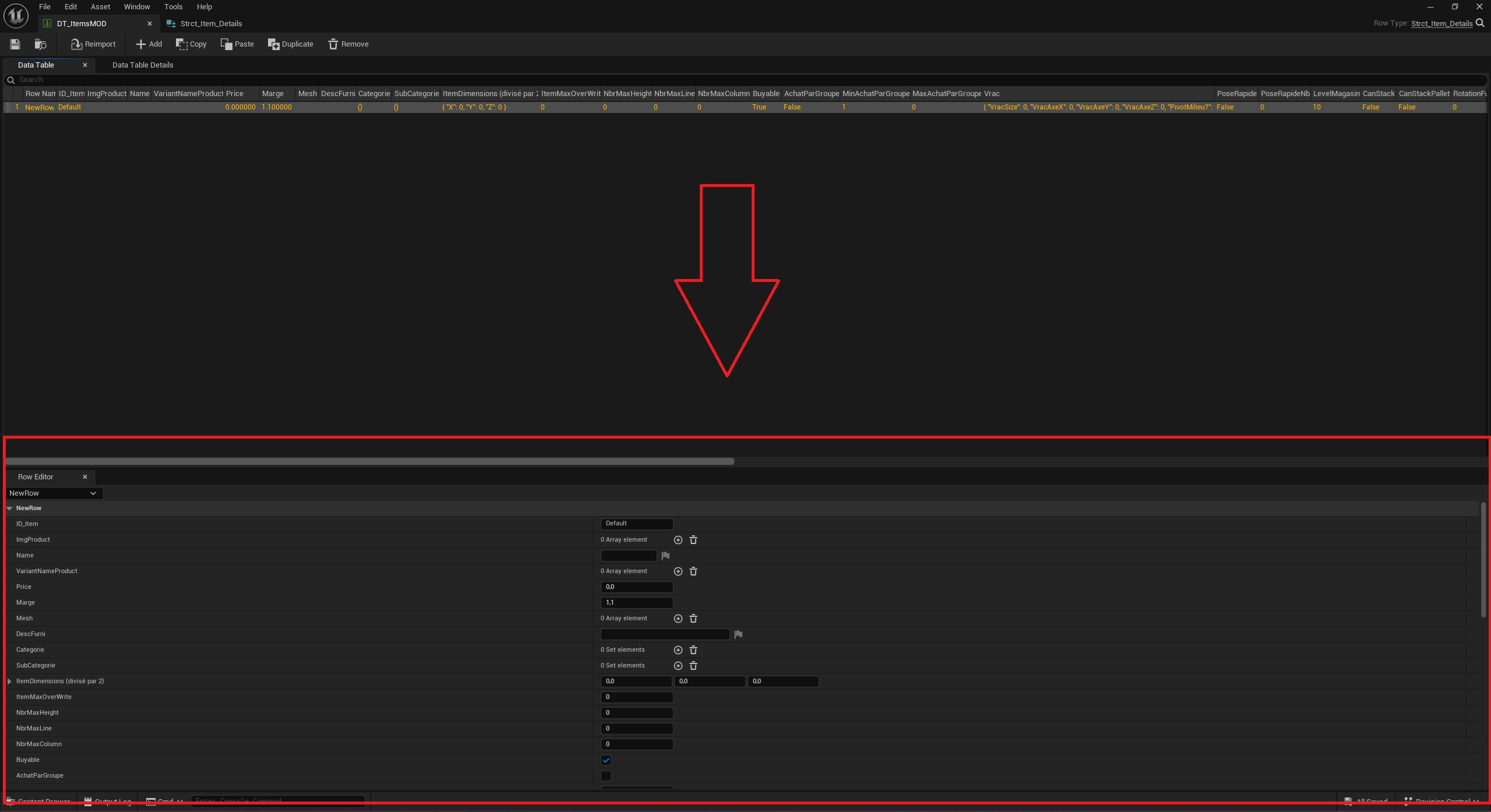
Here is a list of all the variables, along with their types and how to initialize them correctly:
Name - Here, you must enter the line ID (exactly as you entered it in the previous steps).
Array of Static Mesh - Here you can place the 3D model of the box when it is open (if possible). This is the 3D model that will be displayed only when the player is holding the box. When it is on the ground, the 3D model will be the one specified by the “BoxPalletMesh” variable.
Instance Material - This option is only necessary if the item can expire; otherwise, leave it blank. Here you can set the material for the 3D model of the cardboard when it is rotten (if you don't know how to create a material, you can copy and modify the one that is created when you import a 3D model into UE5)
(If your material won’t appear in this setting, check that you’ve created an instance material; if not, right-click on a material and select “Create an instance material from this one.”)
Vector - Here, you must enter the half dimensions in centimeters of the 3D model you imported. (The width is on the X axis, the Y axis serves only as a multiplier for the image above the box, and the Z axis is the height.)
(If you don't know the dimensions of your 3D model, you can click on the “Find the Dimensions of a 3D Model” section in the documentation.)
Transform-
Location: Here you can change the position of the product logos on the boxes.
Rotation: This variable is depreciate.
Scale: Here you can change the size of the product logos on the boxes.
Bolean - Here, you can check the box if you want the item image to appear at the top of the box, or uncheck it to hide it.
Bolean - Here, you can check the box if you want the item image to appear at the side of the box, or uncheck it to hide it.
Vector - This variable is depreciate.
Vector - Here you can specify the number of boxes in a pallet, where:
Static Mesh- Here you can place the 3D model of the box when it is close. This is the 3D model that will be displayed only when the box is in the ground or in a pallet. When it is on the player's hand, the 3D model will be the one specified by the “BoxMesh” variable.
Vector - Here, you can rotate each individual box in the pallet.
Vector - Here, we add space between the boxes in the pallet.
Bolean - Here, you can check the box if you want the items inside the box to remain visible when the box is on a pallet, or uncheck it if you don't want the items to be visible in the boxes on the pallets (useful for transparent boxes where you can see what's inside).
Vector - Here, you can rotate only the items displayed in the box along the Z-axis. (The X and Y axes are not used)
This rotates the entire group (so if the items together formed a large vertical rectangle, it becomes horizontal).
(If you want to rotate them individually, change the “InsideItemRotPallet” variable)
Vector - Here, you can move the box only into the player's hands; this solves the problem of the boxes taking up the entire field of view.
Vector - Here, you can rotate the box only into the player's hands; this solves the problem of the boxes taking up the entire field of view.
Bolean - Here, you can check the box if you want the boxes to display images of the items, or uncheck it if you don't want any images on the boxes.
Float - Here, you can rotate only the items displayed in the box along the Z-axis. (The X and Y axes are not used)
This rotates each item individually, whereas the “rotationcontenue90°” variable rotates the entire group (so if the items together formed a large vertical rectangle, it becomes horizontal).
Float - Here you can add a translation to the items inside the box when it is being held or on the ground only (do not apply a translation to boxes on pallets).