Here's how change Scale, rotation or translation of Static mesh
First, here's how to change the size of a static mesh:
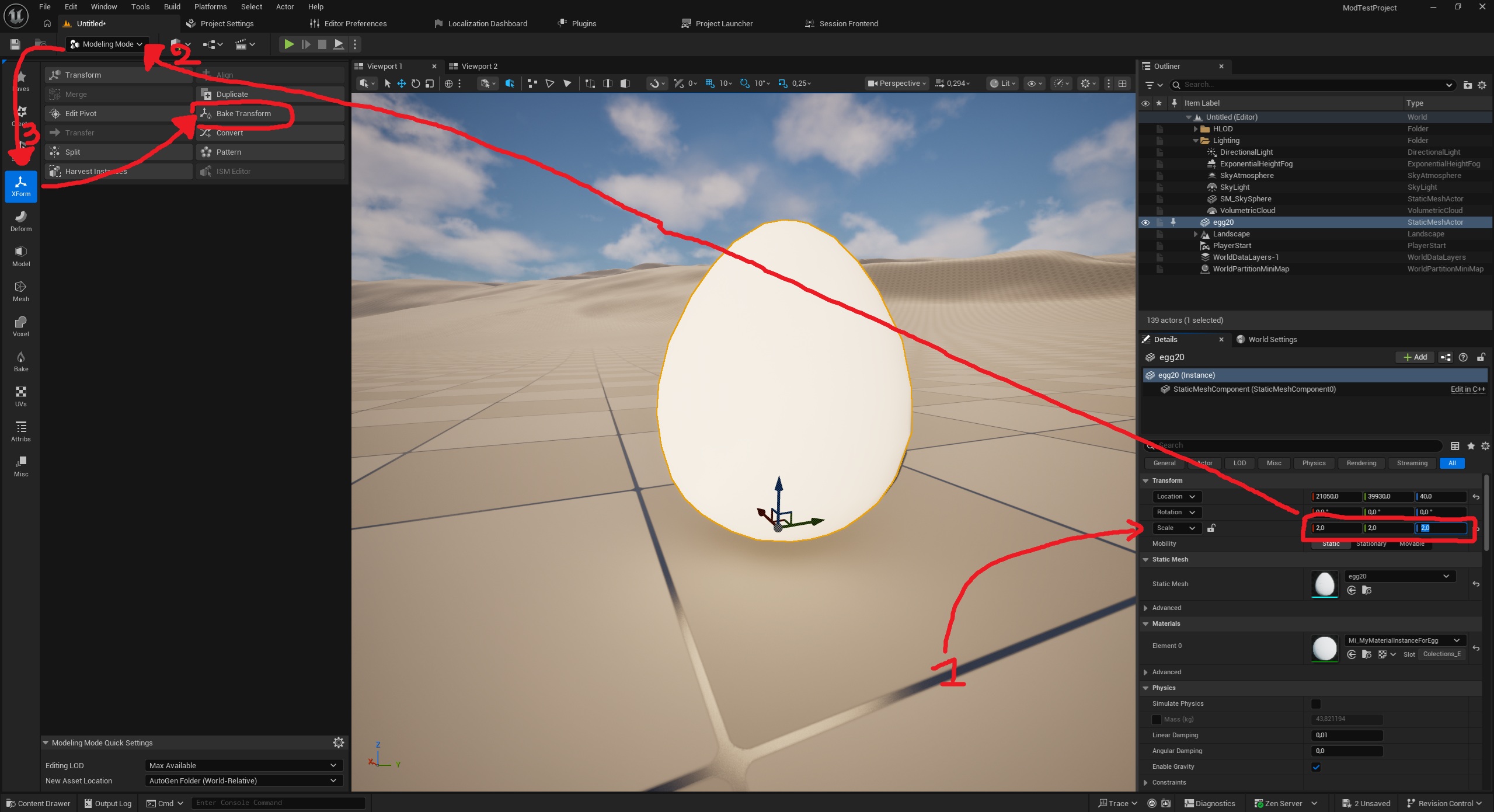
To resize a static mesh, take it from the content drawer and drag it onto the map. Once it's on the map, you can select it, then in the "Details" tab on the right side of the screen, you can resize it. Once you've chosen the size, go to the "Selection Mode" menu (in black) in the top left corner, then select "Modeling Mode." In the window that appears on the left, select "XForm" mode, then click the "Bake Transform" button, and finally, click "Accept" (in blue) in the middle at the bottom of the screen.
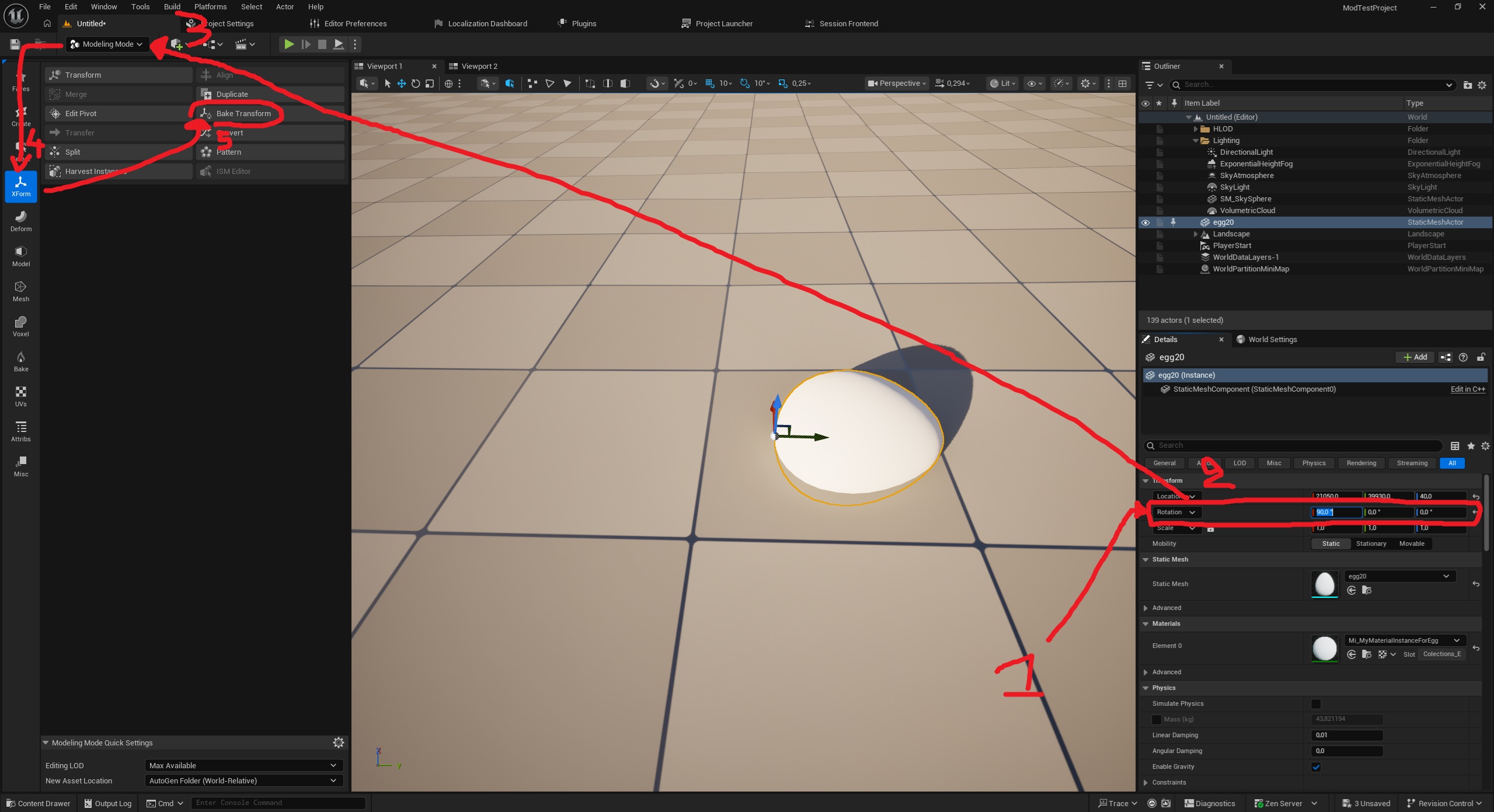
To change the rotation of a static mesh, take it from the content drawer and drag it onto the map. Once it's on the map, you can select it, then in the "Details" tab on the right side of the screen, you can rotate it. Once you've chosen the rotation, go to the "Selection Mode" menu (in black) in the top left corner, then select "Modeling Mode." In the window that appears on the left, select "XForm" mode, then click the "Bake Transform" button, and finally, click "Accept" (in blue) in the middle at the bottom of the screen.
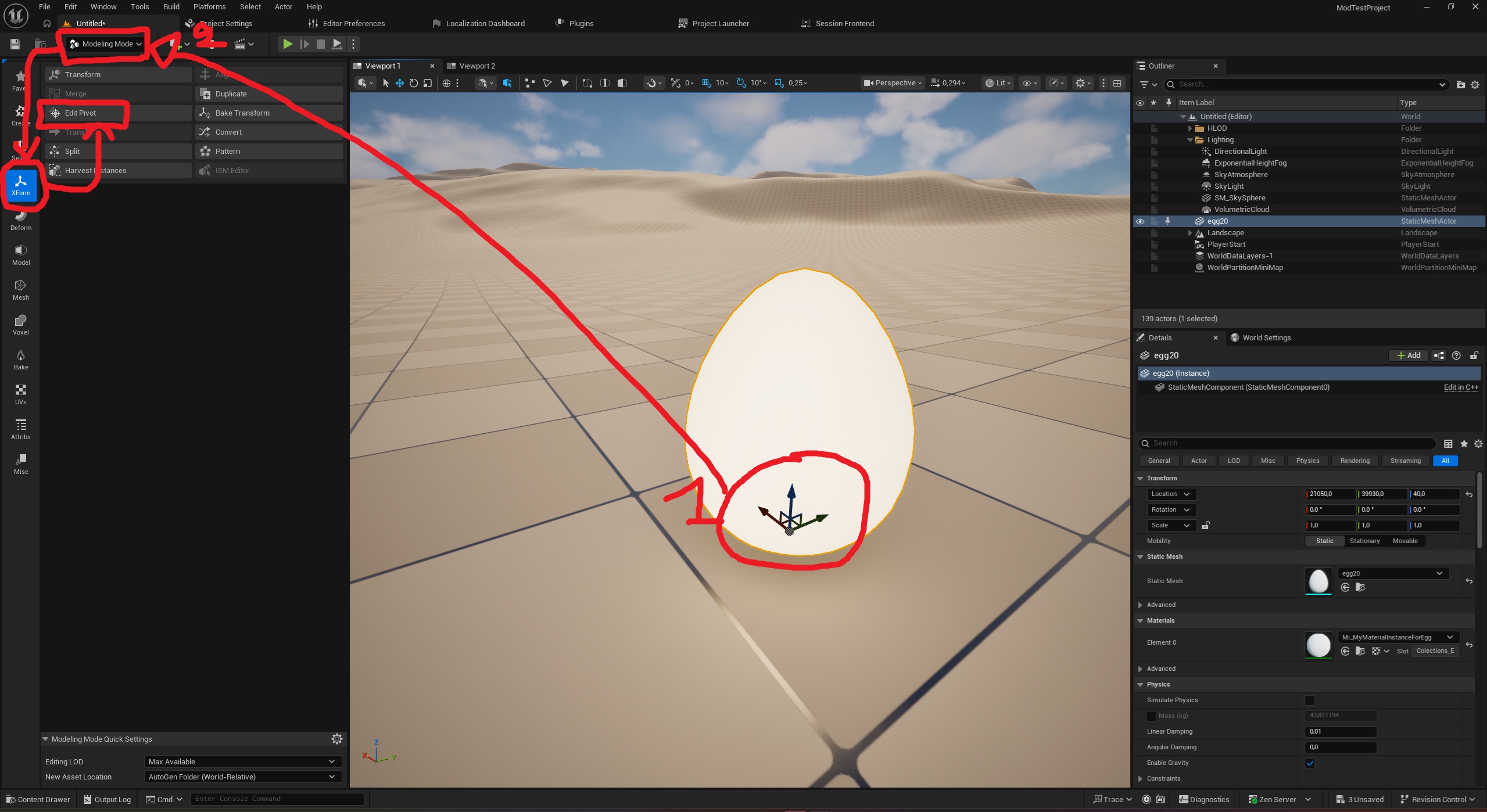
To change the pivto of a static mesh, take it from the content drawer and drag it onto the map. Once it's on the map, go to the "Selection Mode" menu (in black) in the top left corner, then select "Modeling Mode." In the window that appears on the left, select "XForm" mode, then click the "Edit Pivot" button,
Once you arrive here, several options are available to you:
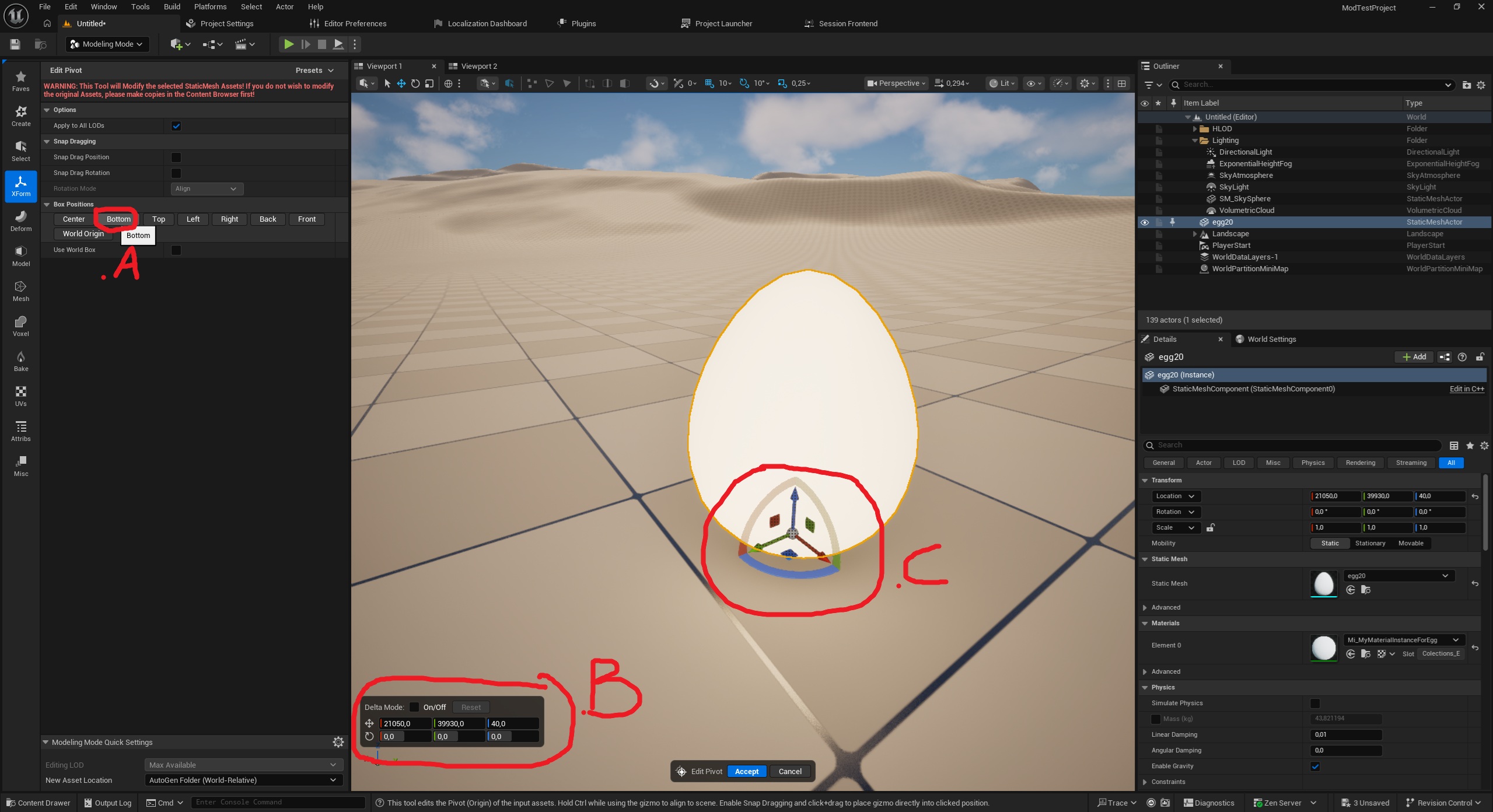
And finally, click "Accept" (in blue) in the middle at the bottom of the screen.