In this tutorial, we will learn how to visualize in advance the positioning and errors of your items in the shelf, pallets or boxes. First, we will learn how to view item errors AND shelf placement using BP_ShelfTest.
how to view item errors AND shelf placement:
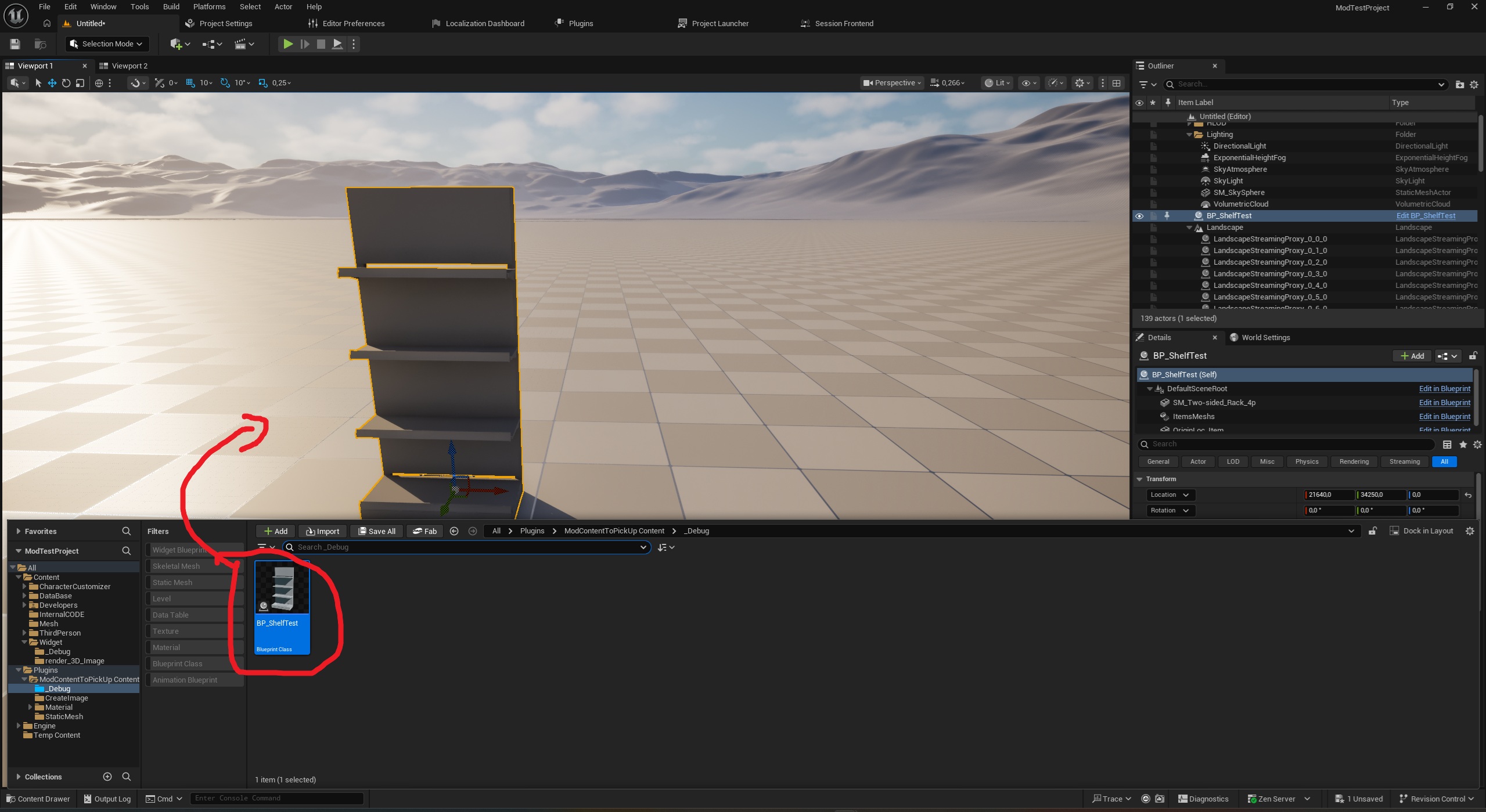
Open the blue "_Debug" folder in your mod, and once inside, open "BP_ShelfTest".
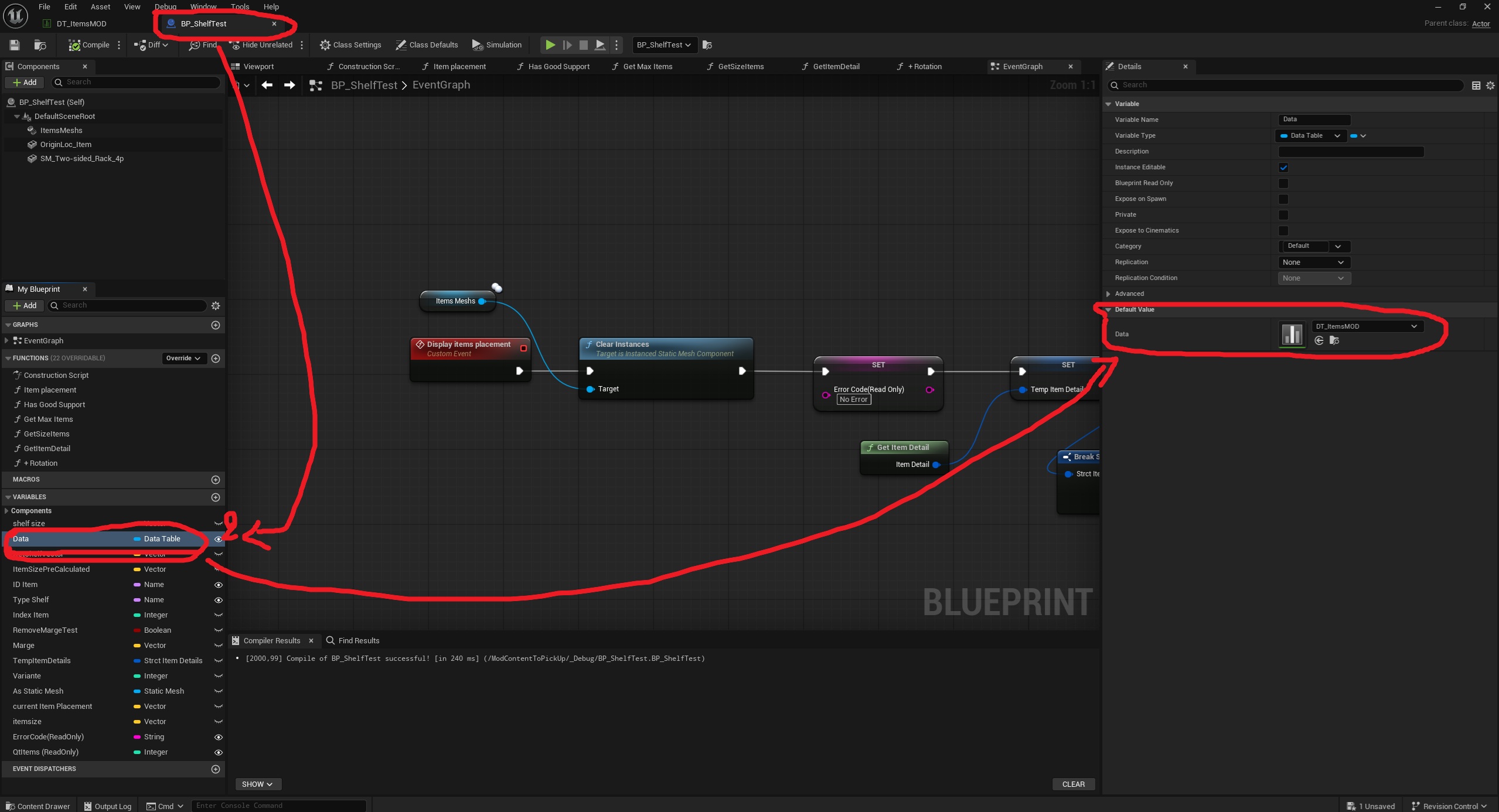
In the bottom left corner, edit the variables:
Data: Enter the data items of the item you want to testin the details tab on the right of the screen.
Close the window and return to the map tab.
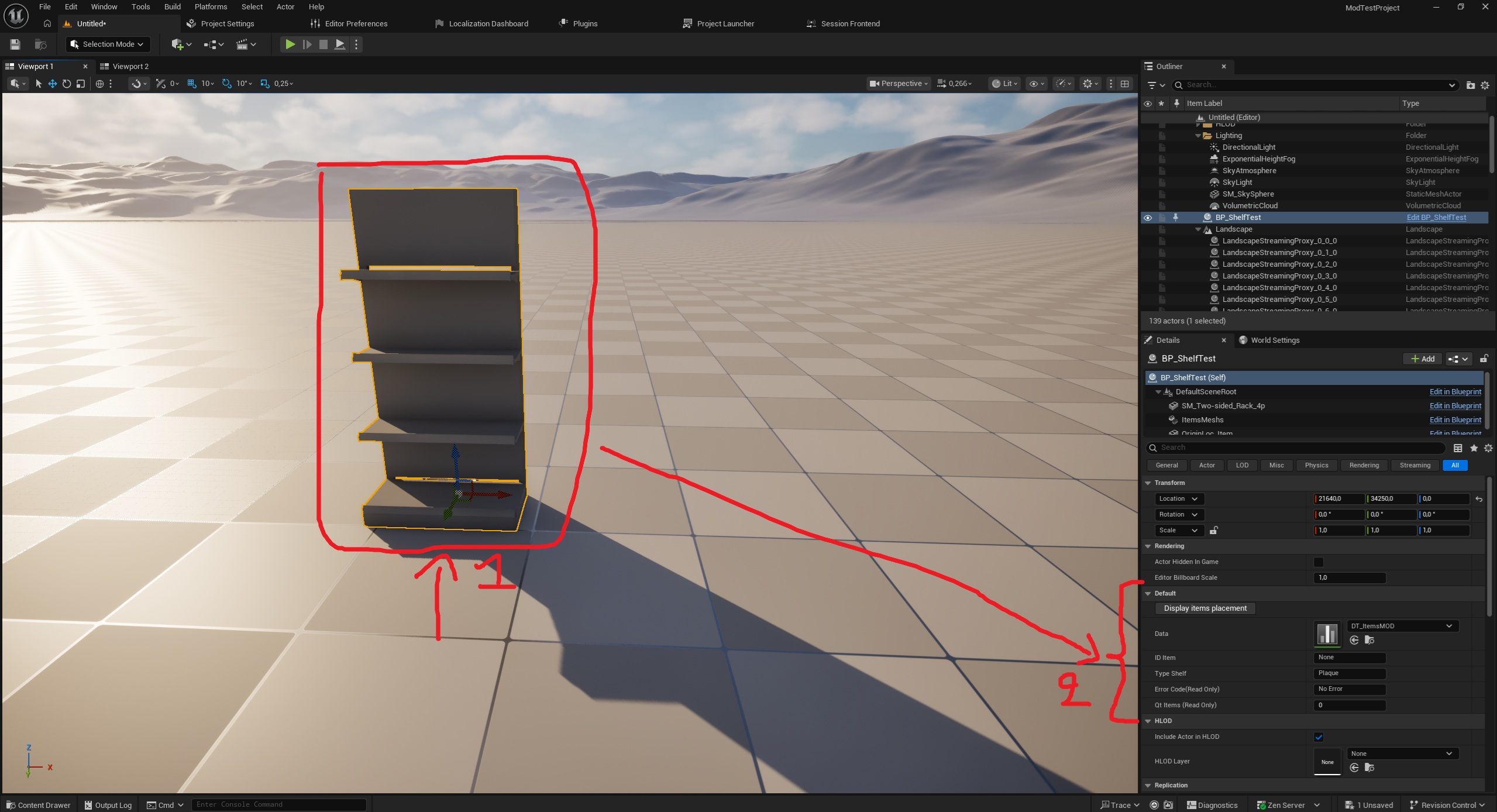
drag the "Bp_ShelfTest" into the map
Then, in the "Details" tab, you can modify the variables for:
ID Item: Enter the article ID (the item ID in the data line) to test this article.
Type Shelf: Enter the Shelf support of the shelf you want to test (You can also put the support for the chosen item)
shelf size: Enter the dimensions of the surface area where the items can be placed on the shelves.
You can then click on the "Display Items placement" button which is located just above the variables in the same tab as the previous step.
The items should be displayed on the shelf.
Finally, the variable "Error Code (Read Only)" (still located in the same place as in the previous steps) will display the following errors:
BAD SUPPORT OR TYPE SHELF: This means that the selected item does not have the same support as the one entered in the "BP_ShelfTest".
BAD ITEM ID: This means the selected item does not exist in the chosen data. Please verify that your line name and Item ID match in the DT_ItemsMOD.
Item QT = 0: This means that the quantity of items is equal to 0 because the item is too large compared to the size of the shelf.