Once your mod is finished, we'll create a .pak file that players can download and add to their game, then will see how to publish the mods into the Steam Workshop.
At the end of this page, you will have troubleshooting help ;D
Create a .pak
- 1-To do this, go to the top left of your screen and select "Edit">“Project settings”.
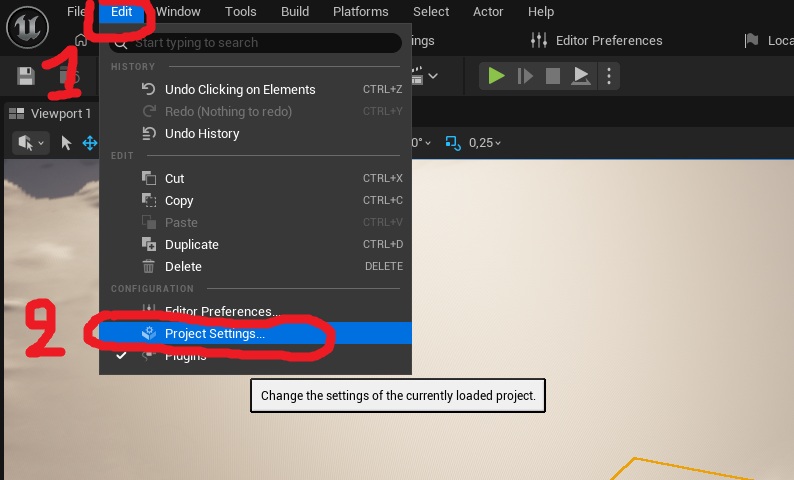
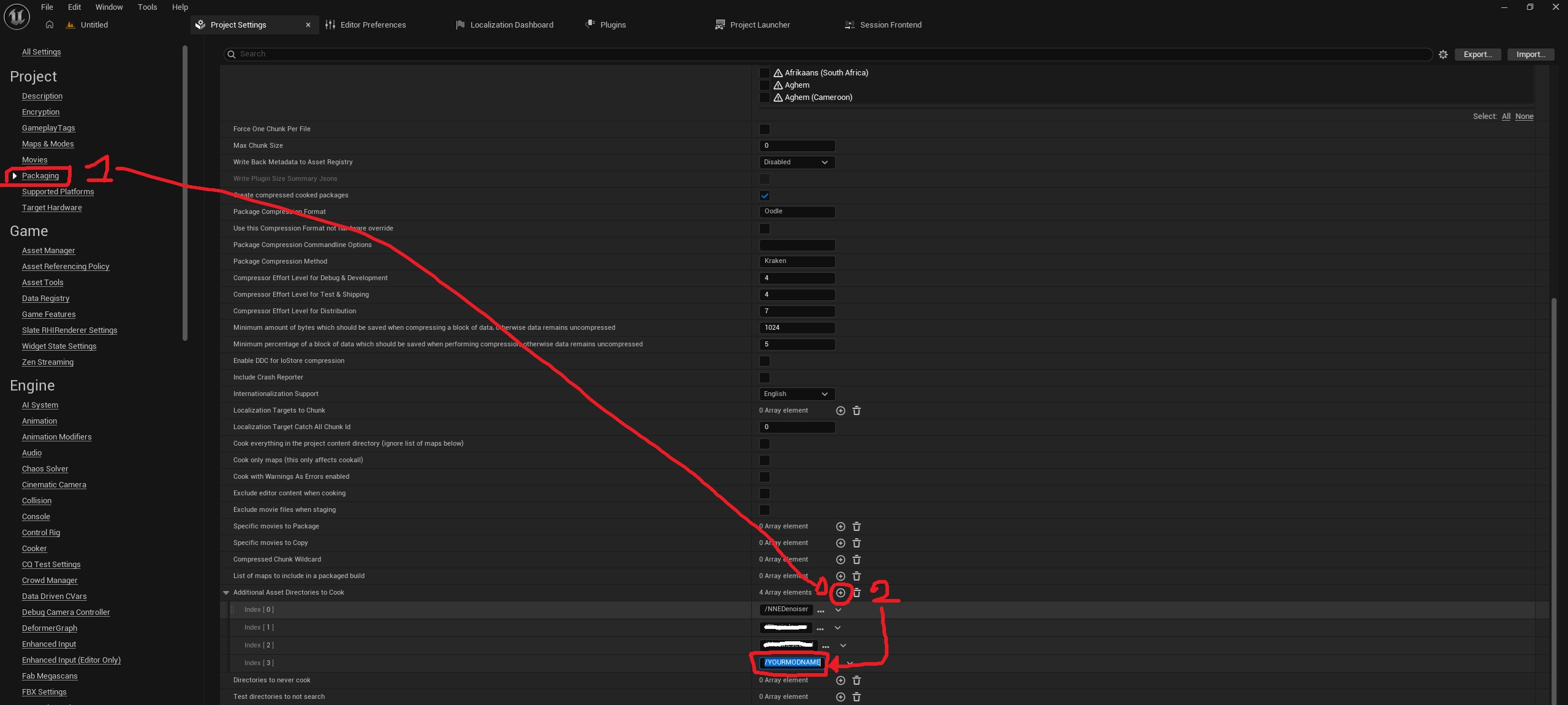
- 2-After that, a window will open. Select the “Packaging” category on the left, then look for “Retain Staged Directory” in the middle of your screen, there is an “Advanced” drop-down menu; open it and scroll all the way to the bottom. You’ll see an option labeled “Additional Asset Directories to Cook.” Open that drop-down menu and click the circled “+” icon, then enter “/NAMEOFYOURPLUGIN” (so a “/” followed by the name of your plugin) in the text field.
(This step 2 only needs to be done once; if you want to create a .pak file a second time using the same mods, you can skip this step.)
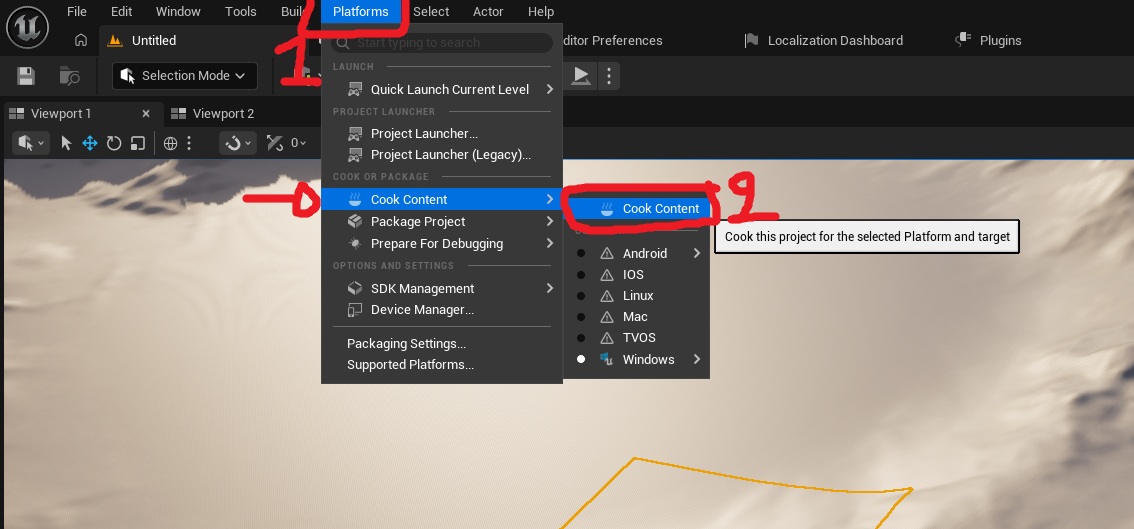
- 3-Next, you can cook the project by going to the top-left corner and clicking “Platforms” > “Cook Content” > “Cook Content”.
Once the progress bar in the bottom-right corner of your screen shows “Success,” you can proceed to the next step.
- 4- Once the cook is finished, we can close Unreal Engine and go to Windows Explorer to open the project folder (wherever you installed it).
- 5- Once it's open, execute "CreatePakBetterMartMod.bat".
- 6 - a .pak file will be created in the same location as the .bat file you ran!
The .pak file is now ready to be shared. Here's how you or other players can install the mod in the game:
How publish the .pak/mod
- 1-Open Steam in background and close the game if it is opened.
- 2-Download this file: Click here to download the Upload tool
- 3-Extract the WinRAR file
- 4-Open the "UploaderTool" folder, then execute "MyProject4.exe"
- 5-Click on the blue "Create New item" button
- 6-After a few seconds you should have several text fields to enter; here's what to put in them:
- Item Name: Here you can enter the name that people will see in the Steam workshop.
- Item Description: Here you can enter the description that people will see in the Steam workshop.
- The description must be very short, just a few characters. It can then be edited via the Steam interface. A description that is too long here will result in the error "Either the provided app ID is invalid or..."
- Preview Image File Path: Here you can enter the path on your computer that links to the image (you can right-click on a .png file and click on "copy path" on Windows) (the image must be in 16:9 format) (If the image path is correct, after clicking enter, the image should appear in the top left corner of the tool.)
- ".pak" file path: Here you can put the path that leads to your .pak file that you previously created in the steps above. (you can right-click on a .pak file and click on "copy path" on Windows)
- 7-Once everything is done, click on the blue button at the bottom, and verify that you have accepted the Steam Workshop rules.
- 8-Once accepted, you can click on the blue "Submit item" button.
Your item is now on the workshop, you can click on the yellow "View item on steam" button to see your mod, and also click on subscribe on the steam page which will automatically install the mod on your game.
Well done the mod is now loaded and shared!
troubleshooting
- The cook fails, and in the logs I see this line: “LogAssetReferenceRestrictions: Error: Asset domain ConcertSyncClient was referenced by [LiveLink] but wasn't found (perhaps it is a plugin that was disabled?)”:
- You can go to the list of plugins (Edit > Plugins) and disable the plugin called “Fab.”
- When I insert the .pak file into the game, the game crashes with this error: EXCEPTION_ACCESS_VIOLATION or Assertion failed:
- You placed the CreatePakBetterMartMod.bat file in the wrong location. Please follow the file path exactly as specified in the documentation.