In this tutorial, we're going to create a new category in the mod and see how to use the ones already in the game; no special programming knowledge is required. First, we'll see how to use a category already in the game:
You can't modify the category that are already in the game, but you can use them for item data, for example.
Here is a list of the category in the game, along with their IDs/name, which can be entered into the item data. And their subcategory linked.
Also, in all categories, the following subcategories can be used to provide certain parameters to the item:
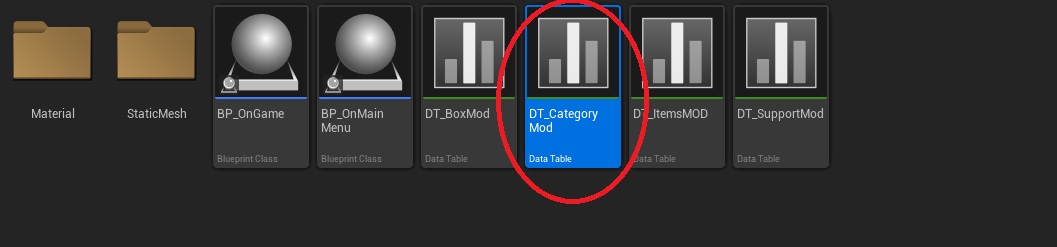
First, we'll open the item data table: "DT_CategoryMod"
Here is the data table interface. First, we'll create a row by clicking “Add” in the upper-left corner of the screen, then select the row that was just created, and finally change the settings at the bottom.
(Note that if some tabs are missing from your menu, you can display them by clicking “Windows” in the upper-left corner and then selecting the missing windows.)
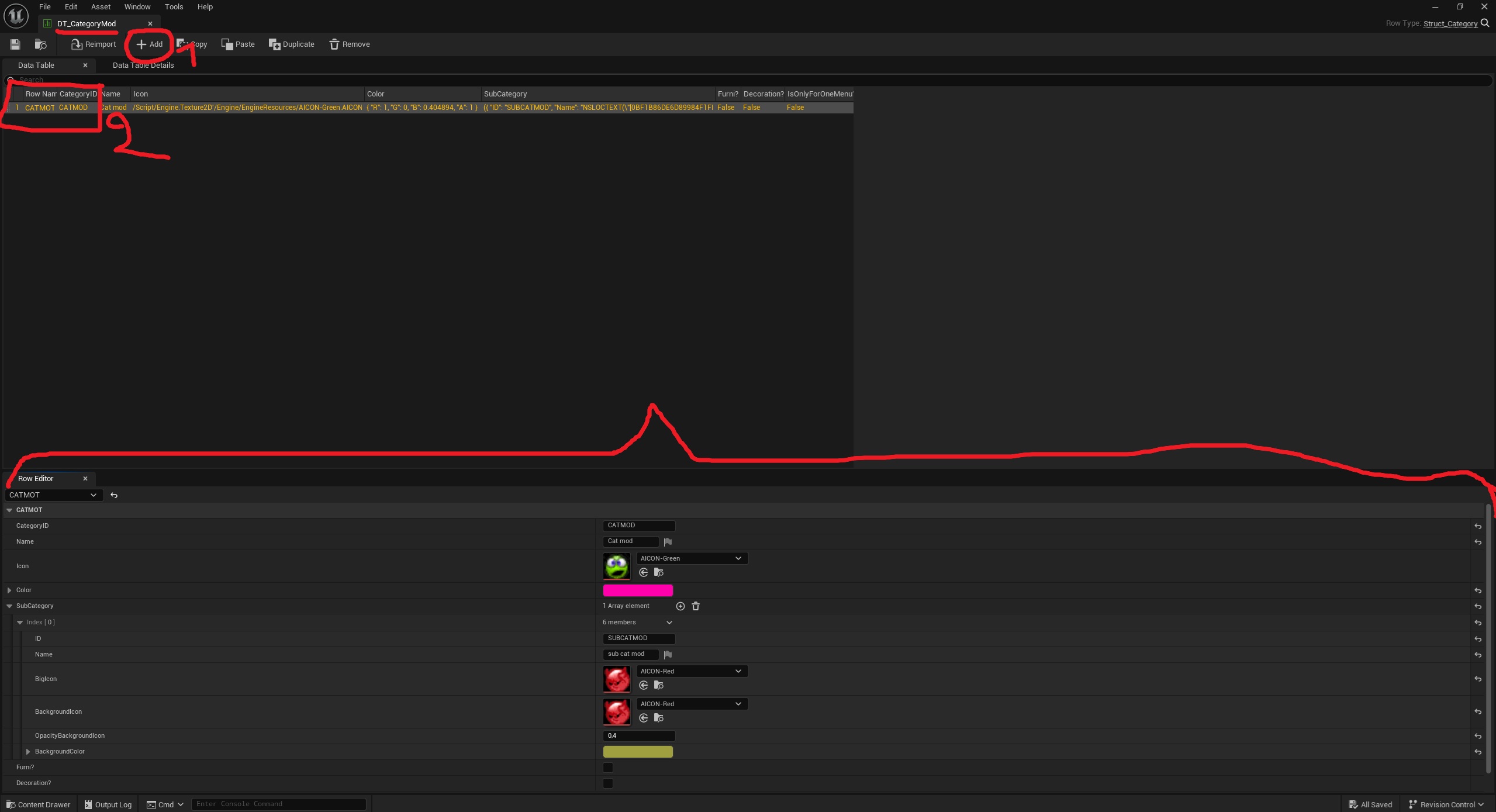
So first, you need to create a unique identifier for each cateogry; each row of data corresponds to one category, subcategory will be to put in the variable of the category.
(This ID should be as short as possible and must not contain spaces, special characters, or accents.)
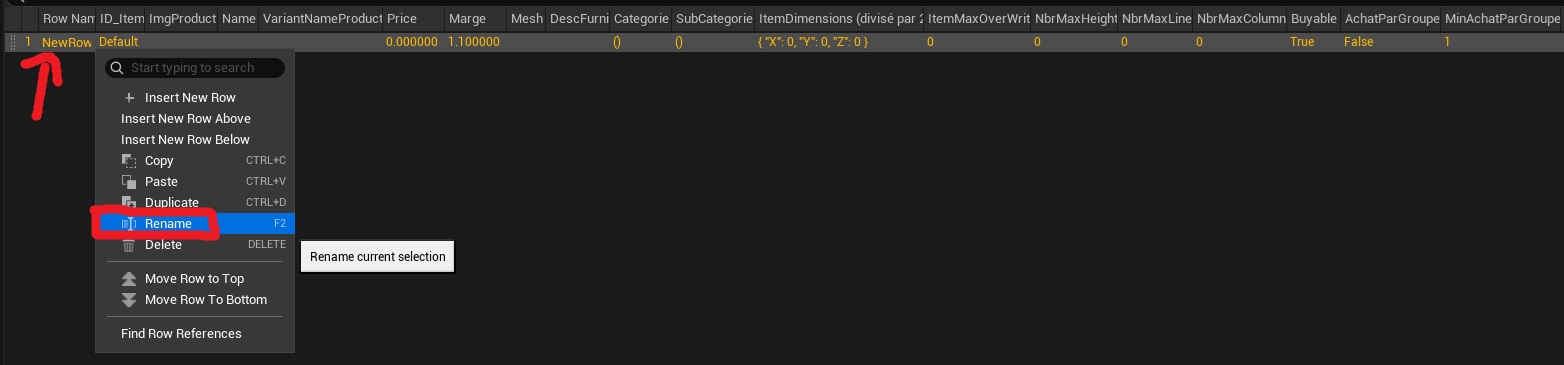
You can assign an ID to a line by right-clicking on it and selecting “Rename.”
Next, you can move on to the bottom section with all the variables to set. Here's what the tab looks like in the image:
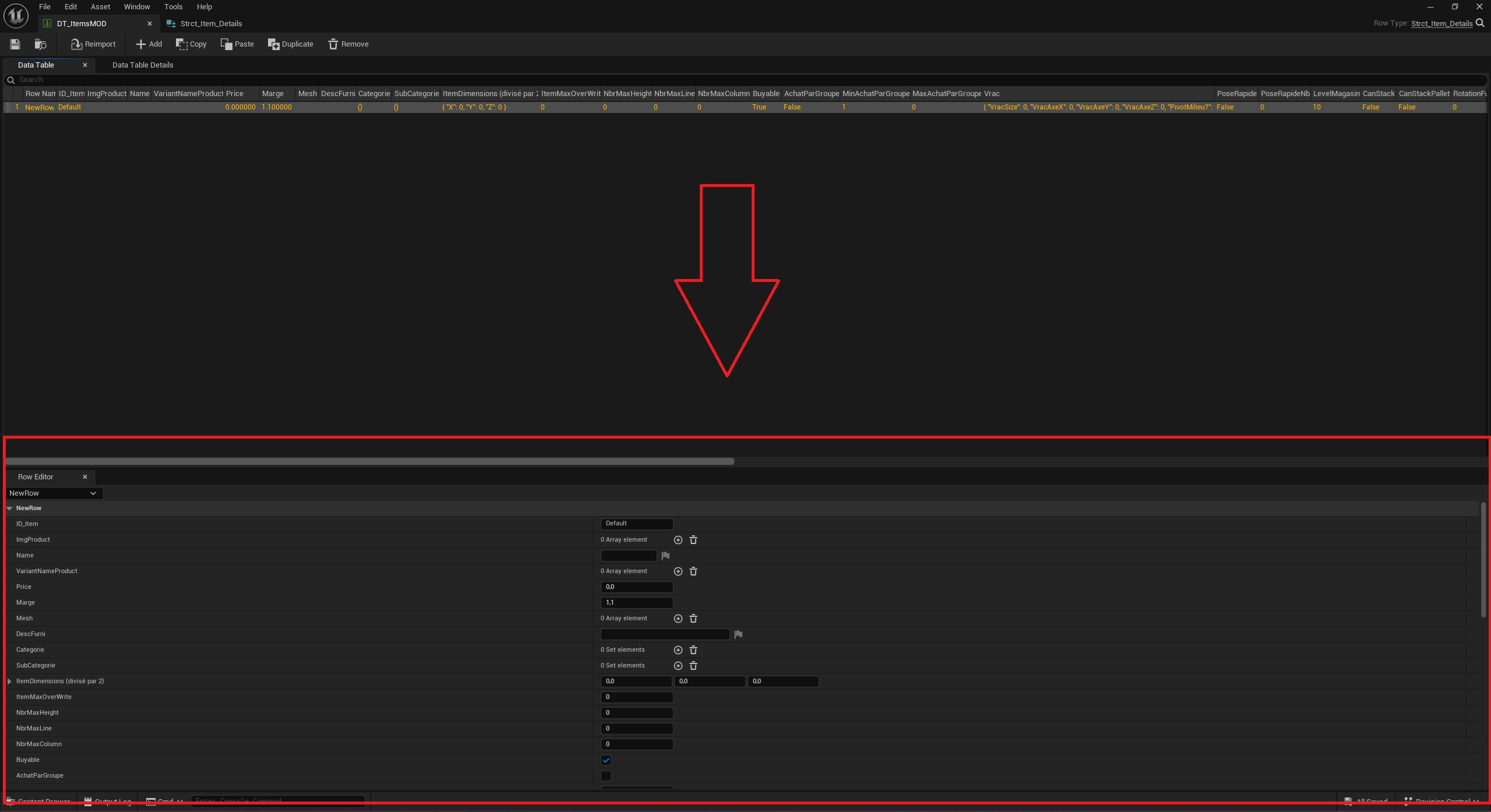
Here is a list of all the variables, along with their types and how to initialize them correctly:
Name - Here, you must enter the line ID (exactly as you entered it in the previous steps).
Text - Here, you must enter the name of the category that players will be able to see.
Texture2D - Here you can add an image you've imported that will represent the category and that players will see.
Linear Color- Here you can choose a bold color that will be associated with the category and that players will see.
Array of subcategory- This is where you enter the subcategories associated with this category. Please note that if you enter a category in the data item with a subcategory that is not linked to that category, the item will not appear in the game.
ID- Name - Here, you must enter a unique identifier that can be used to link the data item to the subcategory
Name - Text - Here, you must enter the name of the sybcategory that players will be able to see.
BigIcon- Texture2D - Here you can add an image you've imported that will represent the subcategory and that players will see. the large image that appears when a subcategory is displayed
BackgroundIcon - Texture2D - Here you can add an image you've imported that will represent the subcategory and that players will see. the background image that appears when a subcategory is displayed
OpacityBackgroundIcon - Float- Here you can adjust the opacity of the background images in the subcategories; by default, this value is 0.4.
BackgroundColor- Linear Color- Here you can choose a dark color that will contrast with the "backgroundIcon" that will be associated with the subcategory and that players will see.
Bolean- Here you can check the box if you want this category to be displayed on the “Furniture” tab.
Bolean- Here you can check the box if you want this category to be displayed on the “Decoration” tab.
Bolean - This variable is depreciate.